Book › Save to a folder
Save to a folder
Connect a folder once and Nekudot saves your artwork and settings straight into it - no download dialog each time, and your work lives as real files on your own computer. Available in Chrome, Edge and other Chromium browsers.
.nekudot save/export instead (see below).
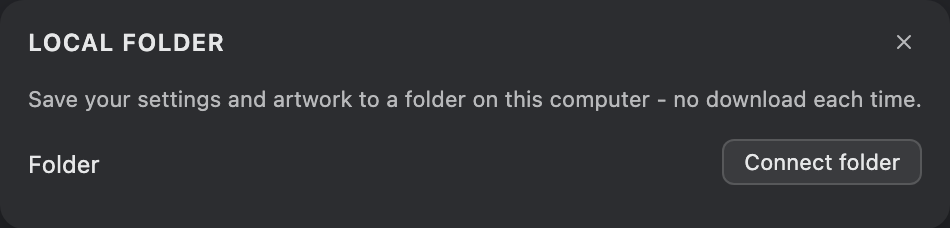
Connect a folder
Open the Local folder panel from the Windows menu (or press f), then click Connect folder and pick any folder on your machine. The browser asks once for permission to write there. Nekudot remembers the folder and reconnects to it on your next visit - if the browser ever drops that permission, the panel offers a one-click Reconnect.
Saving your work
Once a folder is connected the panel gives you:
- This drawing - Save to folder
- Writes the current canvas as a
.nekudotfile in your folder. The panel shows which file this drawing is bound to, so later saves overwrite that same file instead of piling up copies. - Settings - Back up / Restore
- Saves (or reloads) a
.nekudotappbundle with your app settings, custom presets and colour palettes - the same bundle you can carry between devices. - Disconnect
- Forgets the folder. Your files stay exactly where they are; only the link is removed.
.nekudot file, so Save works in
every browser.
Back up - and work across your devices
Because saves are just files in a normal folder, you can point Nekudot at a folder that a cloud service already syncs - Dropbox, Google Drive, iCloud Drive or OneDrive. Every save then mirrors up to your own cloud, giving you an off-device copy and history of your art without any extra step. Nekudot never talks to those services itself; it only writes the files, and your own sync app carries them.
That same synced folder lets you carry one drawing - and one setup -
across your computer, tablet and phone. On another desktop (Chrome or
Edge) just connect the same folder and saves flow both ways. On an iPad or
Android tablet, where connecting a folder isn't available, your cloud app
still holds the files: open a synced .nekudot to keep
drawing and import the .nekudotapp to match your settings,
then export back to the folder when you're done.
Local-first by design
This is a deliberate choice: Nekudot has no server, no account
and no tokens, and nothing you draw is ever uploaded. Your
artwork and settings stay on your device as plain
.nekudot / .nekudotapp files that you fully own
and can move, back up or delete yourself. Cloud backup stays entirely your
call, through a folder you already trust - not a service you have to sign
in to.