Book › Interface › Panels › Application settings
Application settings key ,
App-wide settings in one place - theme, input and advanced toggles.
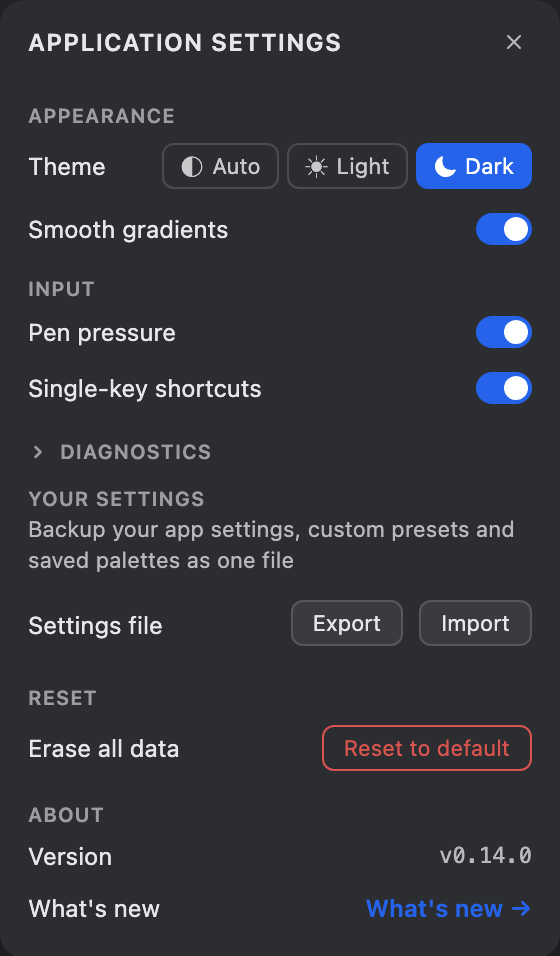
What it is
The global counterpart to the per-brush Brush settings panel. Open it from the toolbar Windows menu or press ,. Theme and Pen pressure used to live in the toolbar's "…" menu and now live here.
Settings
- Theme
- Auto follows your system, or pin Light / Dark.
- Cursor
- What the canvas cursor shows. Brush size + web reach (default) draws a ring at the brush's painted size plus a dashed ring at the web's reach; Cross + web reach keeps the precise crosshair and adds the dashed reach ring; Brush size is the size ring alone; Cross only is the classic crosshair. The rings scale with zoom to match what you'll paint, and the reach ring only shows for connecting brushes.
- Pen pressure
- Use a stylus's pressure and tilt to shape the stroke (and show the Pen section in Brush settings). Off makes a pen draw like a mouse - see Pen & pressure.
- Pen only draws
- Palm rejection, on a touchscreen: only a pen (stylus) marks the canvas, so a resting palm or a stray finger leaves no stroke. Two-finger pan, pinch and rotate still work. Off by default - turn it on when you draw with a stylus, off to draw with a finger. Only shown on touch devices.
- Pixel log
- Records every deposited point to an append-only log. Off by default and best left off - it is groundwork for future features, nothing uses it yet, and it only grows stored data.
- Reset to default
- Under Reset: permanently erases every setting, layer and saved artwork on this device, then reloads the app to a fresh Start page. You must type yes to confirm - there is no undo.
These are application preferences, saved on your device. For settings that
belong to the active brush (size, opacity, connecting dials), use the
Brush settings panel instead.