Book › Interface › Start page
Start page key g
An easy way in - pick how to begin and you're drawing in seconds.
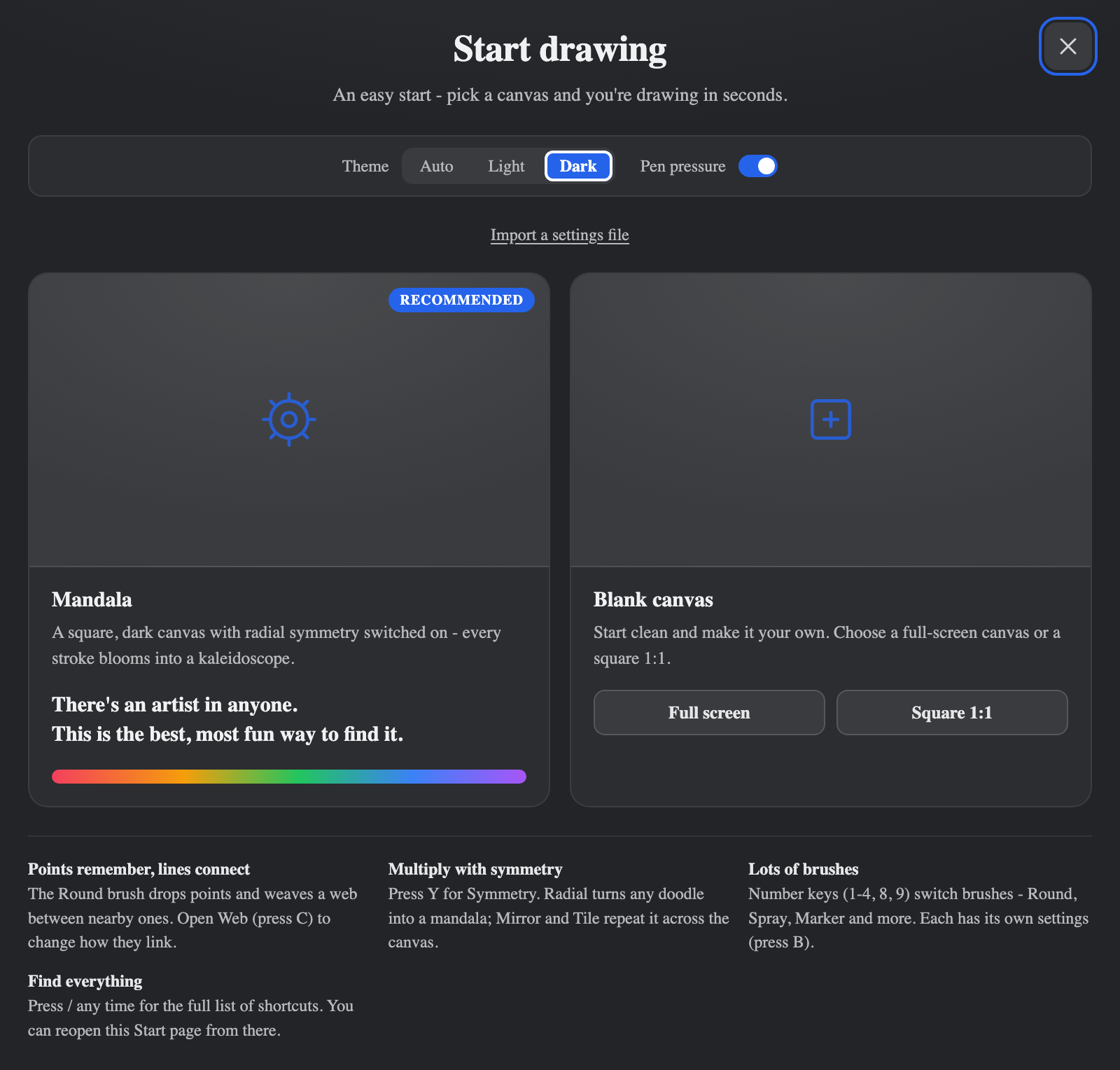
When it appears
The Start page shows on your first visit, and again after Reset to default in Application settings (which wipes everything back to a clean slate). It takes over the canvas area while the toolbar and panels stay put - it's part of the app, not a separate page, so it follows your light/dark theme.
You can reopen it any time with g or Start page in the Shortcuts panel. Since picking an option begins a fresh canvas, it asks you to confirm first. Closing it (the ×) just returns you to your current drawing.
Ways to begin
- Mandala recommended
- A square (1:1), dark canvas with Radial symmetry switched on, the web in Rainbow colour and the Bloom connecting style - so even a single stroke fills out into a colourful kaleidoscope. The fastest way to make something beautiful.
- Blank canvas
- Start clean. Choose Full screen or a Square 1:1 canvas.
- Open a saved piece
- Any sample
.nekudotartworks bundled with the app appear here as cards - click one to open it.
Quick settings
A small bar offers Theme (Auto / Light / Dark) and Pen pressure, mirrored from Application settings, so your very first canvas already matches your setup.